Bisect
Reference
- Mode:
Edit Mode
- Tool:
- Menu:
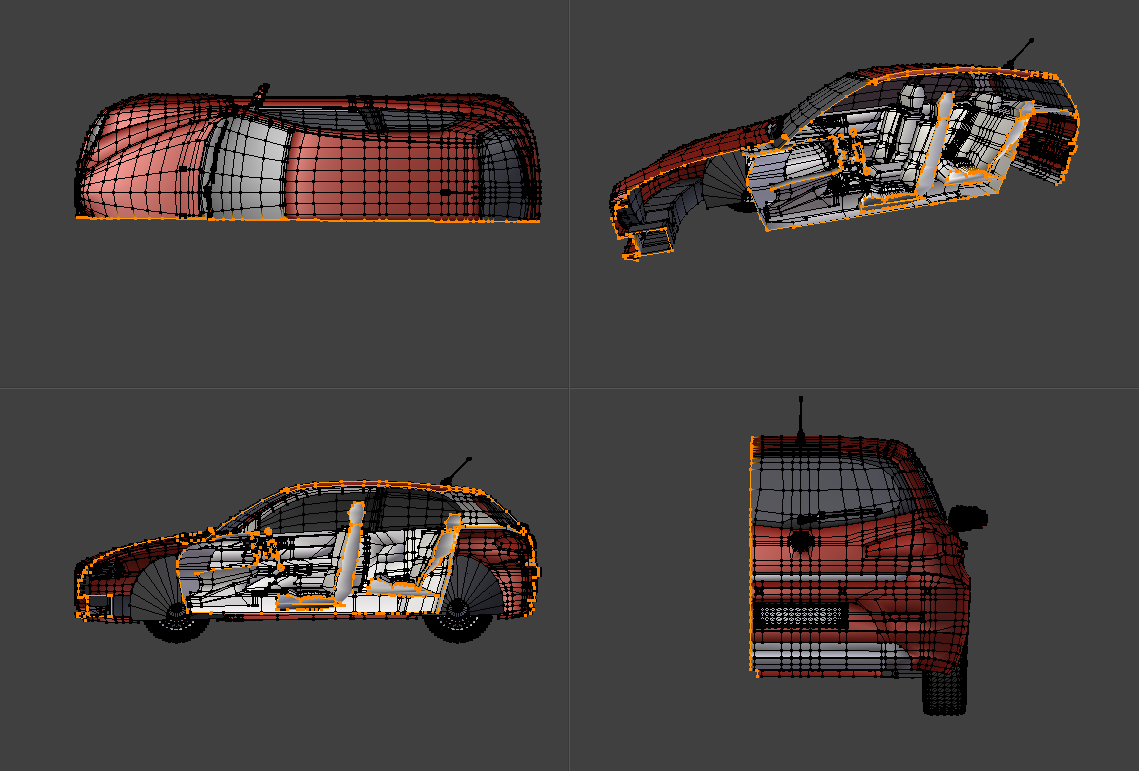
The Bisect tool cuts the selected geometry in two using an infinitely large plane.
Usage
Orient the view so that the cutting plane will appear as a line (for example, the Top view when cutting the mesh into left and right halves). Then activate the tool and drag the cutting line using LMB. While dragging, the following shortcuts are available (also shown in the status bar):
- Move Spacebar
Changes the location of the line.
- Snap Ctrl
Constrains the rotation of the line to 15 degree intervals.
- Flip F
Changes which side of the plane is seen as the “outer” side. This is later used with the Fill and Clear Inner/Outer options.
Options
After dragging the line, a yellow arrow shows the direction towards the “outer” side, and the following options are available in the Adjust Last Operation panel:
- Plane Point, Plane Normal
The plane can be numerically adjusted for precise values.
- Fill
Create new faces along the cutting plane to cover up any holes left by Clear Inner/Outer. Materials, UV coordinates, and Color Attributes are assigned based on the surrounding geometry.
- Clear Inner/Outer
Delete any geometry on the “inner”/”outer” side of the cutting plane. Note that this also affects geometry that was not originally selected.
- Axis Threshold
Any vertices closer to the cutting plane than this threshold will be reused. For the rest of the mesh, new vertices and edges are created.