Sidebar
View
Reference
- Panel:
Backdrop

Backdrop panel.
The backdrop displays the output of a Viewer node behind the node editor in the Compositor. For example, pressing Shift-Ctrl-LMB on an Image node displays a preview of the image, while pressing it on a Mix node shows the result of the mixing operation.
The backdrop can be toggled by enabling the checkbox in the Backdrop panel header or by clicking the Backdrop button in the Compositor header.
The backdrop is useful for visually evaluating node results while editing, allowing direct comparison between the node graph and its output.
- Channels
Specifies which color channels of the backdrop image are displayed.
- Zoom Alt-V, V
Adjusts the display size of the backdrop image.
- Offset X, Y
Offsets the backdrop image in screen space.
- Move Alt-MMB
Interactively moves the backdrop image.
- Fit
Scales the backdrop image to fit the Compositor view.
Options
Reference
- Panel:
Performance
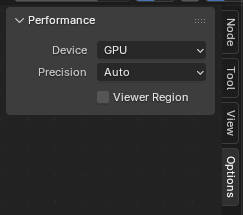
Performance panel.
This panel helps you tweak the performance of the Compositor.
- Device
The device used for compositing.
- CPU:
Use the CPU for compositing.
- GPU:
Use the GPU for compositing.
- Precision GPU
The precision of compositor intermediate result.
- Auto:
Use full precision for final renders, half precision otherwise.
- Full:
Use full precision for final renders and viewport.