Image Node
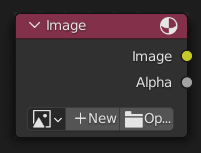
The Image node injects any image format that is supported by Blender.
Inputs
This node has no input sockets.
Properties
- Image
Selection of different types of media. For controls see Data-Block Menu. For the options see Image Settings.
- Source
Type of image (Single Image, Movie…). See Image Settings.
- Frames
How many frames of the Movie-type image (video) to play. Past this point, the video will be paused (unless Cyclic is enabled).
If you want to play the whole video, you can click Match Movie Length in the Image Editor’s Sidebar, then copy the Frames from there to the node.
- Start Frame
Scene frame at which the video should start playing.
- Offset
Number of frames to offset the video to an earlier point in time. (Put differently: how many frames at the start of the video to skip.)
Hint
Blender plays video textures at the scene frame rate, not their original frame rate, meaning they’ll be faster or slower than intended if these frame rates don’t match up. You can put a Driver on the Offset to work around this. Simply type the following into the field, replacing StartFrame, VideoFrameRate and SceneFrameRate by their respective numbers:
#(frame - StartFrame) * (VideoFrameRate - SceneFrameRate) / SceneFrameRate
- Cyclic
Start over after the last frame to create a continuous loop.
- Auto-Refresh
Update the video texture in the 3D Viewport when moving through the timeline.
- Color Space
The Color Space the image file was saved in. See Image Settings for details.
- Alpha
How the image uses its Alpha Channel. See Image Settings for details.
Outputs
The first two sockets are the minimum.
- Image
Standard color output.
- Alpha
Separate Alpha value.
Note
Multi-Layer Format
When a multi-layer file format, like EXR, is loaded,
each layer is made available as a socket.